 Kerjo Studios
Scan the Home
Scan the Home scans rooms with your iPhone or iPad's LiDAR sensor (using Apple's RoomPlan) and turns them into a floorplan and 3D model, with measurements. There is no account or sign-in. Your data stays on your device and syncs through your own private iCloud.
Requirements: scanning needs an iPhone 12 Pro or later Pro model, or an iPad Pro with LiDAR. On a device without LiDAR the app shows a notice and scanning is turned off, but you can still create, browse and export houses, floors and rooms. Camera access is requested only to scan rooms, and add-only Photos access only if you save a picture of a 3D model.
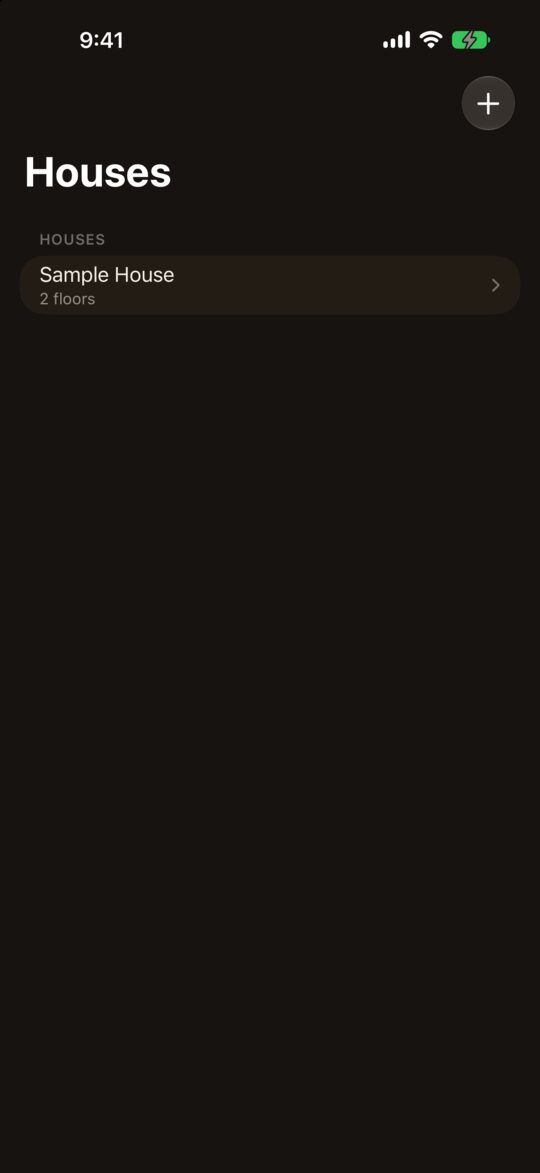
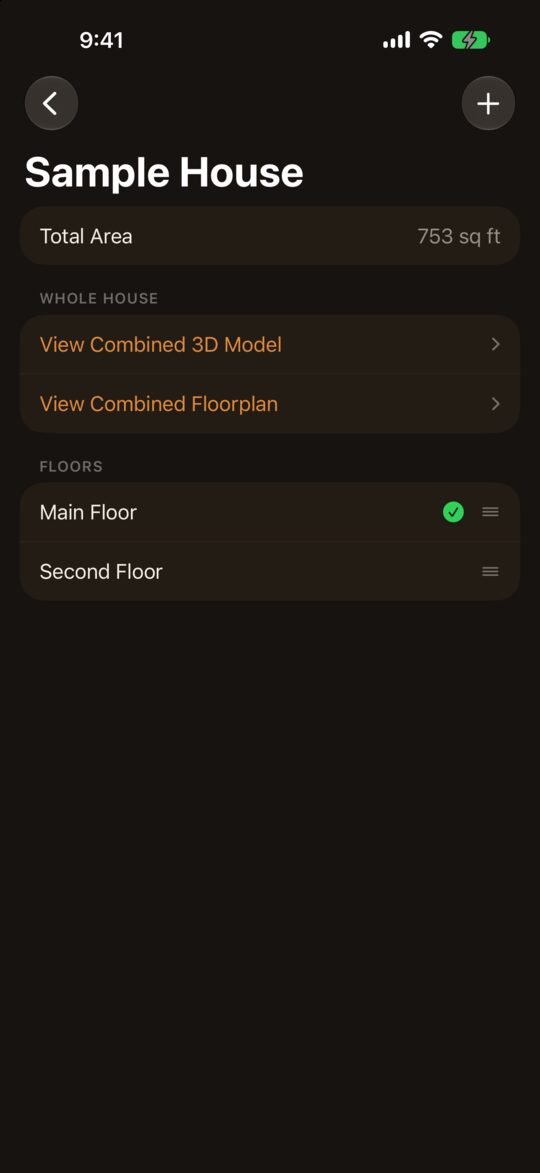
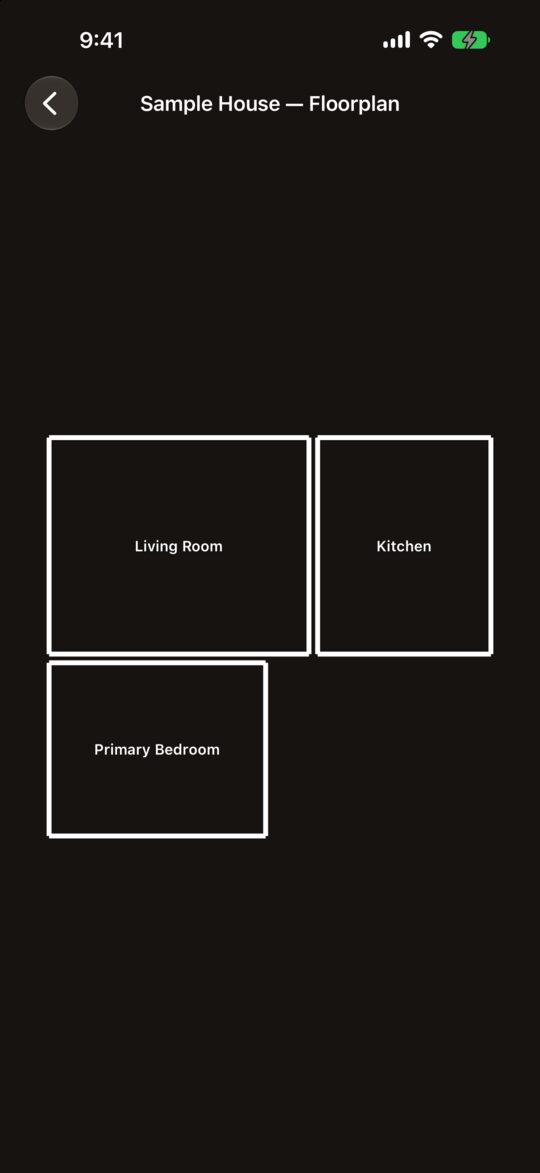
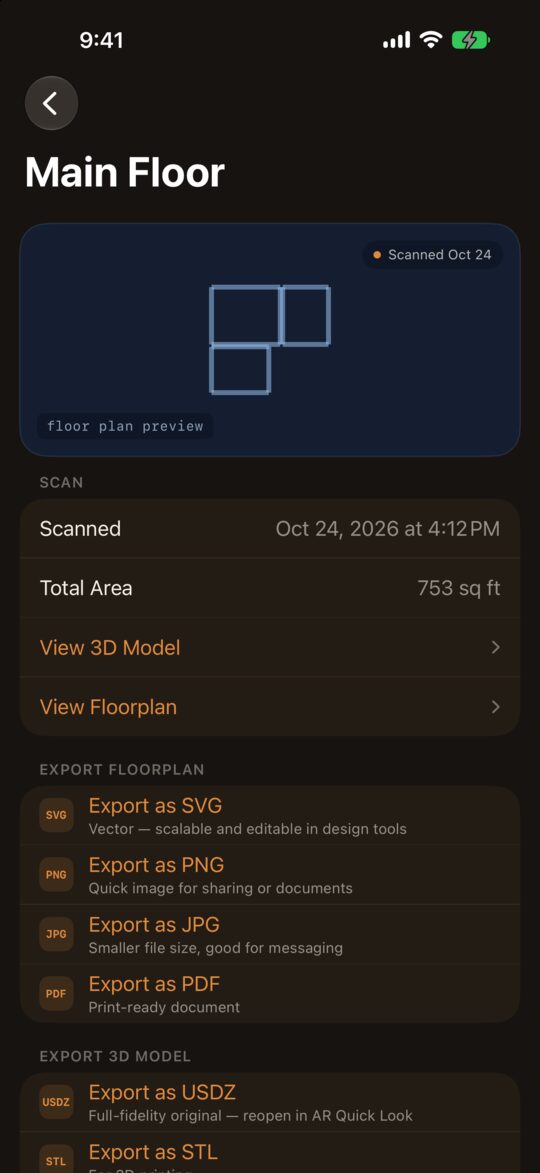
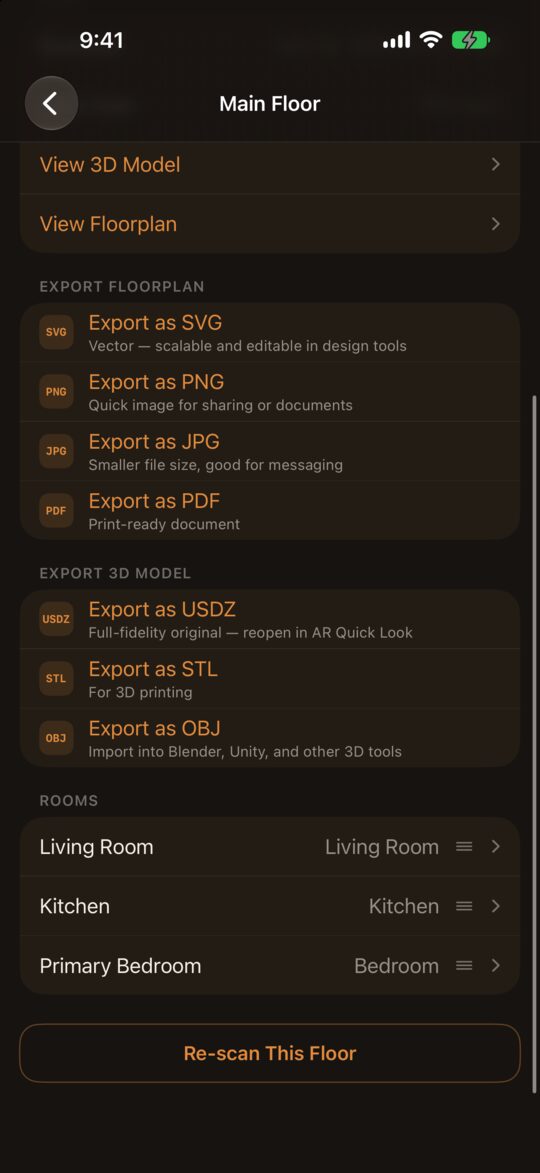
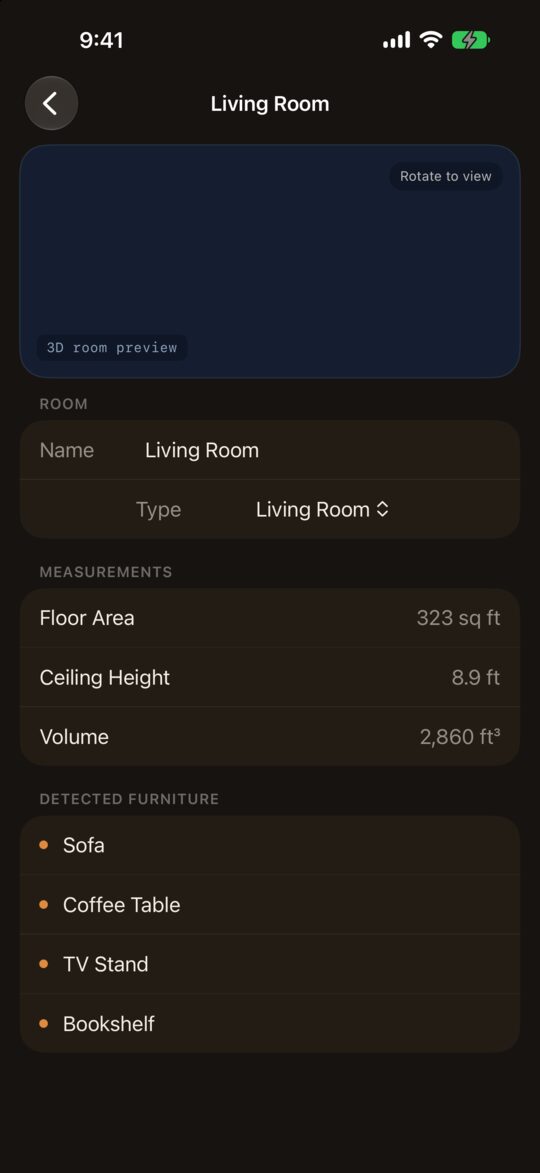
Screenshots show sample data, so the floorplans are plain outlines and the room preview is blank.
Getting started
- Add a house. On the Houses screen, tap +, then tap the house to open it.
- Add floors. The house screen shows its Total Area. Tap + under Floors to add one. A green check marks a scanned floor, and you can drag the handle on the right to reorder floors. Whole House offers View Combined 3D Model and View Combined Floorplan, which show all scanned floors together.
- Scan. Open a floor that isn't scanned and start the scan. Walk each room slowly with the device so the walls, doors, windows and furniture are captured. Each scan becomes a room on the floor.
- Review. A scanned floor shows a floorplan preview, the scan date and Total Area, with View 3D Model and View Floorplan.
Exporting and sharing
Use the export options on the floor screen to share a floorplan or model.
- Floorplan: SVG (vector, editable in design tools), PNG, JPG (smaller files, good for messaging), or PDF (print-ready).
- 3D model: USDZ (full fidelity, opens in AR Quick Look), STL (for 3D printing), or OBJ (for Blender, Unity and other 3D tools). You can choose to export without furniture.
Rooms
The Rooms list on the floor screen lets you tap a room to open it, or drag the handle to reorder rooms. Open a room to edit its Name and Type (Living Room, Kitchen, Bedroom and so on) and see its Floor Area, Ceiling Height, Volume and Detected Furniture. After a remodel, use Re-scan This Floor at the bottom of the floor screen to redo it. Measurements display in square feet and feet for US locales.
Why can't I scan?
Scanning needs a device with a LiDAR sensor: an iPhone 12 Pro or later Pro model, or an iPad Pro with LiDAR. Also check that camera access is allowed for the app in Settings.
Where is my data?
On your device, and in your own private iCloud (CloudKit) so it syncs between your devices. We don't receive or hold any of it.
How do I share a floorplan?
Use the export options above to save or send it as an image, PDF or vector file.
Need more help?
Email [email protected] and include the app name, version, your device and OS version, and what happened. See also our privacy policy.